

Sending things to your operator
Creating an address your own systems post to, one per source, rotating a leaked one, what to send, and how to read every reply you can get back.
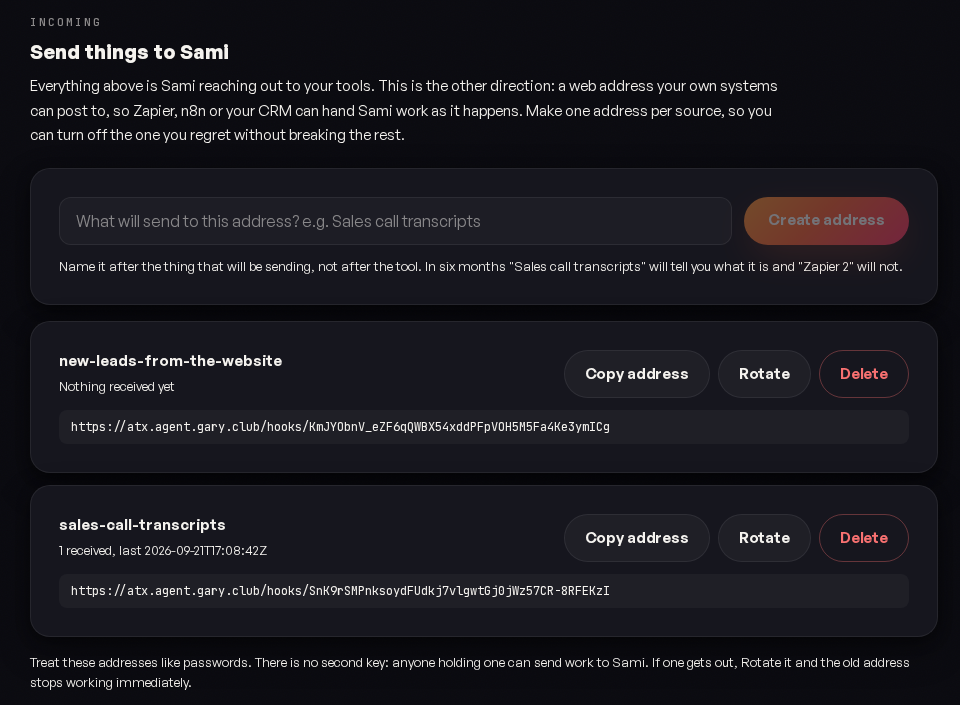
Most of your Connections page is your operator reaching out: you paste a credential and it goes and fetches. This is the other direction. It gives you a web address that your own systems post to, so Zapier, n8n, your CRM or anything else that can send a webhook can hand your operator work the moment it happens.
The commonest use by some distance is a sales call. The call ends, your recorder or your CRM fires, the transcript arrives here, and your operator has what it needs to write the follow up before anybody has opened a laptop.
Before you start. Everything on this page happens inside your own portal at luna.gary.club, because the address it gives you is a secret and can only be shown to you. There is no password: put in your work email and a six digit code arrives. If your email is not recognised, you have not been added yet, and whoever owns your account can add you in a few seconds under Settings. See Signing in.
Making an address
Open Connections and scroll to Send things to your operator
It is the last section on the page.
Look at what is already there first
If somebody set this up with us during onboarding, your address already exists and is listed with a count of what it has received. Use that one. Making a second address for the same source is not harmful, but it splits the history across two counters and makes the next question about whether something arrived harder to answer than it needs to be.
Type what will be sending
For example Sales call transcripts. Name it after the thing that sends, not the tool: in six months that name will tell you what it is and Zapier 2 will not.
Press Create address, then Copy address
The full URL is shown on screen as well, so you can read it if copying is blocked.
Paste it into whatever is sending
In Zapier that is a Webhooks by Zapier step, action POST, Payload Type JSON. In n8n it is an HTTP Request node. Both are built out step by step under Building the send below.
One address per source
Make a separate address for each thing that sends: one for call transcripts, one for new leads, one for whatever comes next.
This is the whole reason the screen works this way. One shared address means that the day you want to switch off the one you regret, you switch off the four you rely on as well. Separate addresses cost nothing and mean you can always kill exactly one.
The address is the password. There is no second key: anyone holding it can send work to your operator. Keep it inside the tool that is sending, not in a shared doc, a ticket or a Slack message.
Rotating
If an address ever gets out, press Rotate. A new address is issued and the old one stops working immediately, which will break whatever was sending until you paste the new one in.
That is the point. An address that keeps working while you get around to replacing it has not been rotated. Rotating keeps the name and the history, so you do not lose the record of what that source has sent you.
Choosing what fires it
The address is our side and it is finished the moment you copy it. What sends to it is your side, in whatever tool already knows the thing happened, and it is the part we cannot see or set up for you. For a sales call it is almost always one of three:
| Trigger source | Fires on | Worth knowing |
|---|---|---|
| Your call recorder Fathom, Fireflies, Gong, Grain, Otter, Zoom | A recording finishing and its transcript being ready | The best source, because the transcript is the thing you are sending and this is the tool that makes it. |
| Your CRM | A deal moving to a stage such as Call completed | Good when a human always moves the card. If the card sometimes gets moved the next morning, your timestamps will be a day out, so send the call's own end time rather than the moment the stage changed. |
| Your scheduler Calendly, Cal.com | A booked meeting's end time passing | The weakest of the three. It fires whether or not the call happened, so a no show will still send. |
The one that catches nearly everyone: transcription is not instant. A recorder finishes the call, then transcribes it, and that second step takes minutes. So a Zap triggered on meeting ended runs while the transcript is still empty, and sends an empty one.
Pick the trigger that means the transcript exists, not the one that means the call is over. In most recorders that is an event named something like Transcript ready, Recording processed or Summary created. If the only trigger on offer is the call ending, put a Delay step of ten minutes in front of the send and fetch the transcript after it.
We cannot catch this one for you, and you should know exactly why. We reject a message that is completely empty, because that is unambiguously a sender that was never finished. But transcript arriving as an empty string inside an otherwise complete message is not something we can tell apart from a genuinely silent call. It is a valid message, so it is accepted, and Zapier shows a success.
So the failure looks like this: everything reports green, the counter on your Connections page climbs, and the follow ups your operator writes are vague, because it is working from nothing. If the writing ever reads oddly generic, check the transcript field before you check anything else. Your operator also flags a call it could not read, so it will usually tell you first.
What to send
Send whatever the receiving job needs. Nothing is discarded: extra fields are kept. Two habits separate a useful message from a vague one.
Send a timestamp for the thing itself, not for when the webhook fired
If a deadline hangs off when a call ended, send when the call ended. A webhook that fires twenty minutes late would otherwise move the deadline twenty minutes.
Leave a field out rather than guessing at it
An absent field means your operator writes around it, which is weaker and correct. A wrong field means it states something untrue with total confidence. Missing is recoverable; wrong is not.
A worked example: a sales call
This is close to what Clients on Demand send. The field names are yours to choose; what matters is that the same names arrive every time.
| Field | Why it matters |
|---|---|
transcript | The full text. Your operator reads it privately and never sends it on. |
prospect_email | Where the follow up goes. Without it there is nothing to send. |
prospect_first_name | What it calls them. |
closer_name | Who ran the call, so it can write your call with Dorian. |
call_ended_at | When the call ended. If a time limited offer runs from the end of the call, this is the field the deadline is computed from, quoted to the minute. |
deposit_left | True or false. This one changes the whole email, so send it only if you can send it reliably. |
The two above deserve special care. Send the end time, not the start or the booking time, and send it with a timezone. And on the deposit flag: if you cannot populate it reliably, leave it out. Absent means your operator writes an email that does not mention deposits. Wrong means it tells someone their deposit locked in a price when it did not.
Building the send
The address is one half. This is the other, in the two tools most people use. The step that matters in both is the last one, because an unmapped field is the single commonest reason a setup looks finished and delivers nothing.
Zapier
Set the trigger to the event that means the transcript exists
See Choosing what fires it. In most recorders this is Transcript ready or Recording processed, not Meeting ended.
Add an action: app Webhooks by Zapier, event POST
Not Custom Request, which makes you hand write the body and is a slower way to the same place.
URL: paste your address. Payload Type: JSON
Leave Wrap Request In Array off, and leave Unflatten as it comes. Neither changes anything we do with it.
Fill in Data, one row per field
The left box is the name we receive, so type transcript, prospect_email and the rest exactly as you want them to arrive. The right box is the value, chosen from the trigger step with the plus icon. This is the step people skip. An empty Data section sends an empty body, and we answer 400 empty payload so it fails in front of you rather than quietly.
Press Test step and read the response
accepted: true and you are done. Zapier keeps every attempt in Task History, so this is also where you look later if something stops arriving.
One optional extra worth the thirty seconds: add a field called
dedup_key holding whatever your recorder calls the call, its
recording id or meeting id. If Zapier ever retries and sends the same call
twice, we recognise it and answer duplicate: true instead of
writing a second follow up to the same person.
n8n
Trigger on the transcript being ready
Same rule as Zapier. If your node only offers the call ending, add a Wait node of ten minutes and fetch the transcript after it.
Add an HTTP Request node, Method POST
URL is your address. Authentication None: the address is the credential, so there is nothing else to configure.
Body Content Type JSON, Specify Body Using Fields Below
Then one row per field, names on the left exactly as you want them to arrive, expressions on the right. Using JSON works too if you would rather write the object yourself.
Execute the node and read the response
accepted: true means it landed. n8n keeps the execution, so you can open it later and see exactly what was sent.
If n8n is self hosted, it needs to be able to reach the public internet to post to your address. Nothing needs to reach in to n8n, which is the direction that usually needs a firewall conversation.
Anything that can post a webhook works, not only these two. Make.com, a CRM's native webhook, a line of code in your own app: if it can POST to a URL, it can talk to your operator. The address does not care what sent to it.
Testing it before a real call depends on it
Do not let the first message through the pipe be a live prospect. Both tools can send one by hand, and one test is enough.
Send one from the tool itself
In Zapier that is Test step on the webhook action; in n8n it is Execute node. Use a real past call so the fields are populated the way they will be in production. An invented payload tests your typing, not your mapping.
Read what came back
accepted: true means it landed. Anything else is in the table below and each one names what to change.
Check the counter moved
On Connections, that address should show one more received and a timestamp from a moment ago. The tool saying it sent is the tool's opinion; the counter is ours, and if the two disagree that is worth telling us about.
Then look at the transcript your operator actually got
This is the step that catches the empty transcript above, and it is the one people skip. Ask your operator on the Talk page what it received from the last call. If it reads back the conversation, you are done.
Reading the replies
Whatever is sending will show you what came back. In Zapier that is Task History; in n8n it is the execution.
| Reply | What it means | What to do |
|---|---|---|
accepted: true | Your operator has it. | Nothing. |
duplicate: true | It already had this one. | Nothing. This is normal and healthy. |
400 empty payload | Nothing was actually sent. | Add the fields to the webhook step. The Data section is empty. |
413 body too large | Over 256KB, roughly a five hour transcript. | Tell us. |
404 unknown hook | Wrong address, or it was rotated and the sender still has the old one. | Copy it again from Connections. |
429 too many requests | More than 120 in a minute from one address. | Almost certainly a loop. Tell us. |
A duplicate is not an error. Zapier and n8n both retry when they are unsure whether a send landed. We answer already have it rather than failing, which is exactly what stops a retry becoming a second follow up to the same person. A sender that treated a duplicate as a failure would retry harder, which is the opposite of what anyone wants.
Checking from your side
Each address on your Connections page shows how many it has received and when the last one arrived. If the sending tool says it sent and that counter has not moved, that is a real discrepancy and worth telling us about.
What happens to what you send
It lands on your own server
The machine running your operator. It is not stored anywhere else.
It is written down before anything reads it
So a message can never be received and then lost because something downstream did not like it.
Your operator reads it and decides what it means
It does not act automatically just because something arrived.
What it may then do is set by you
An inbound message is information from outside, treated like an email from a stranger. It can ask for something; it does not authorise it. See Skills.
Yes, make an address on each and have your automation post to both. They are separate operators with separate memory, so neither will know what the other received.
No. Order is irrelevant; names are what matter.
Yes, and you should. Run one through with your own email address in the recipient field and see what comes back.
256KB is roughly a five hour call, so this is rare. If you hit it, tell us rather than truncating: a half transcript produces a confidently wrong summary.
Not down the same connection, which is one way. Have your operator start one of your automations instead. See Zapier and n8n.
Was this page helpful?